
You landed. You looted. But you died to lag. If you’re grinding ranked in BGMI, Free Fire, or COD Mobile, frame drops aren’t just annoying, they cost you matches. Most Android phones default to battery-saving modes that throttle your CPU mid-fight. This mobile gaming optimization guide Android edition cuts the fluff and gives you the exact settings competitive players use to maintain 60-90 FPS consistently.
Developer Options That Actually Matter
Before touching game settings, unlock your phone’s full hardware potential.
Force Peak Refresh Rate
Navigate to Settings > Developer Options > Display refresh rate. Toggle “Force peak refresh rate.” Many phones (especially Samsung and Xiaomi) cap at 60Hz during gaming to save battery, causing stutter. Lock it to 90Hz or 120Hz if your panel supports it.
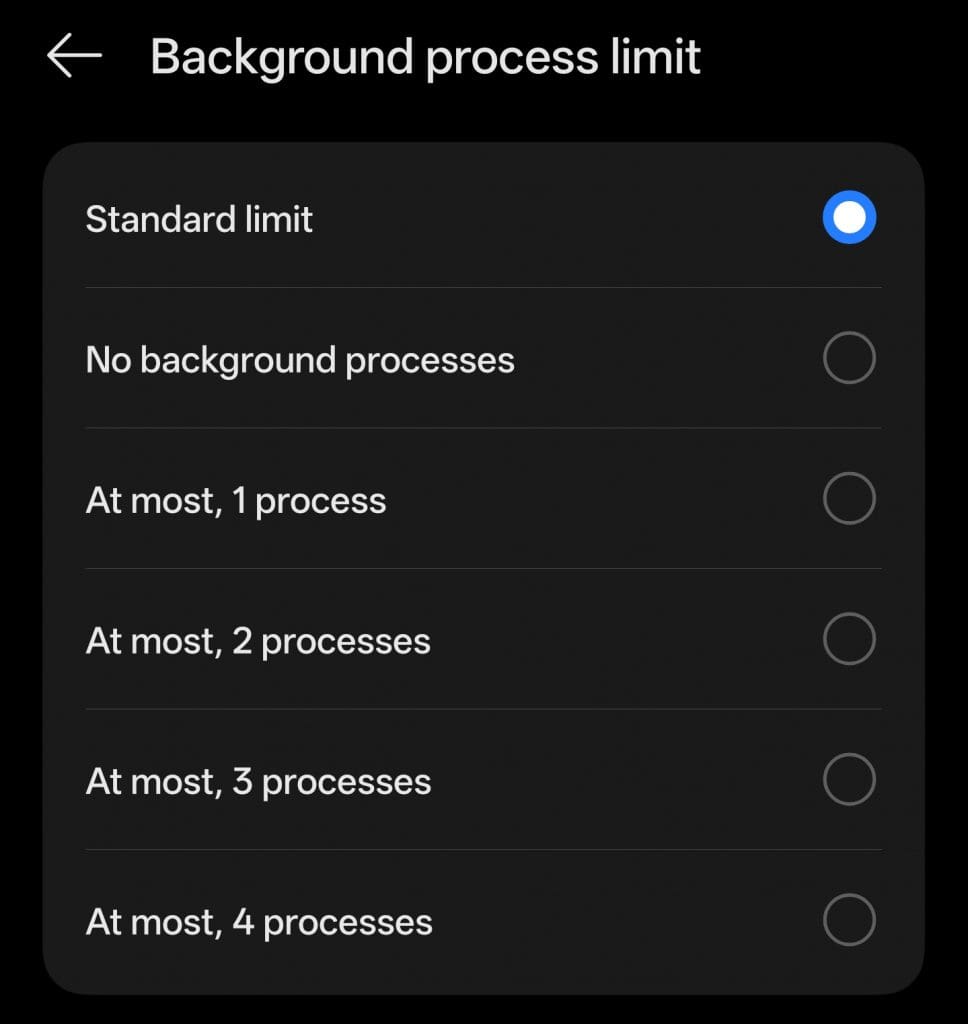
Disable Background Process Limit
In Developer Options, find Background process limit and set it to “No background processes.” This prevents WhatsApp, Instagram, and system apps from eating RAM while you’re in a gunfight.
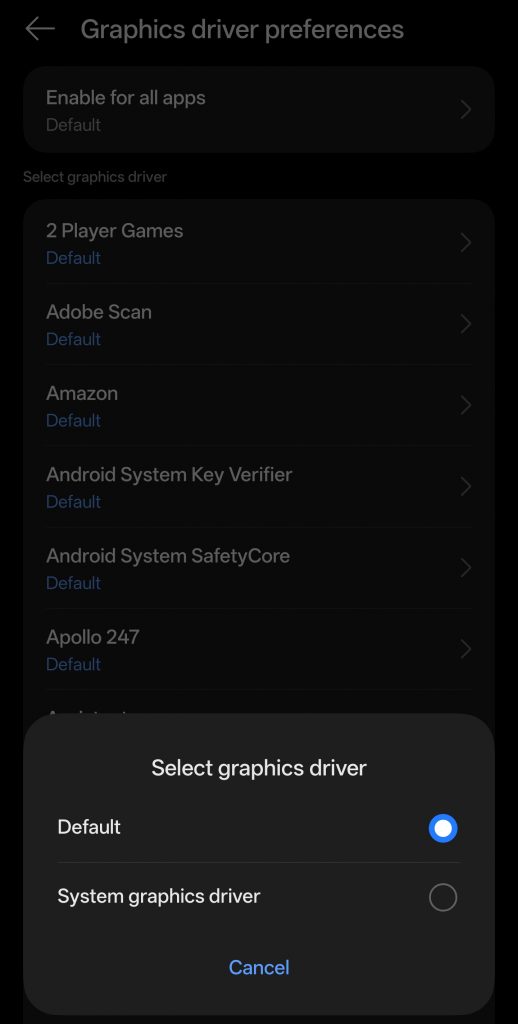
Graphics Driver Preference
In the developers settings, change the “Graphics Driver Preference” from default to to “System Driver Preference”.
In-Game Graphics Settings for Competitive Play
Stop maxing everything. Visual fidelity costs frames, and frames win fights. This section of our mobile gaming optimization guide Android focuses on game-specific configs.
Battlegrounds Mobile India (BGMI)
| Setting | Recommended Value |
|---|---|
| Graphics | Smooth |
| Frame Rate | Extreme (60 FPS) or 90 FPS |
| Anti-aliasing | Disable |
| Style | Colorful or Soft |
| Shadows | Off |
Free Fire Max
| Setting | Recommended Value |
|---|---|
| Resolution | Standard |
| Shadows | Off |
| Auto-adjust graphics | Disable |
| Smooth Follow | Off |
Call of Duty Mobile
| Setting | Recommended Value |
|---|---|
| Graphics Quality | Low or Medium |
| Frame Rate | Max (60 FPS) or Very High |
| Depth of Field | Off |
| Ragdoll | Off |
| Anti-aliasing | Off |
Network Optimization
High ping kills faster than bad aim. Fix your connection without buying a “gaming router.”
DNS Settings
Switch to Cloudflare (1.1.1.1) or Google DNS (8.8.8.8) in your Wi-Fi settings. This reduces routing hops to game servers, typically dropping ping by 15-30ms in BGMI and COD Mobile.
Disable Battery Saver for Gaming Apps
Go to Settings > Apps > [Game Name] > Battery. Select “Unrestricted” and disable “Pause app activity if unused.” Android’s Doze mode kills network priority for background apps, causing those “network lag detected” messages mid-match.
5GHz Wi-Fi Only
Force your phone to use 5GHz bands only (disable 2.4GHz in router settings or forget the 2.4GHz network). The 2.4GHz band is crowded with Bluetooth devices and neighbors’ Wi-Fi, causing packet loss during peak hours.
Thermal Management Without Coolers
Your phone throttles at 42°C. Keep it cool without bulky fans.
Remove the Case
Silicone cases trap heat. Play bare-backed or use a perforated case. A 5-degree temperature drop prevents CPU throttling for an extra hour of stable FPS.
Play in Airplane Mode with Wi-Fi
Enable Airplane Mode, then turn Wi-Fi back on. This stops your device from searching for cellular towers, reducing chipset heat by 3-5°C during intense sessions.
Storage Cleanup
Keep 20% of your storage free. When NAND storage hits 90% capacity, read/write speeds drop by 40%, causing texture pop-in and late game rendering in Free Fire’s Kalahari map.
RAM Management for Budget Devices
If you’re running 4GB or 6GB RAM, every megabyte counts. No mobile gaming optimization guide Android is complete without memory tweaks.
Disable “Game Boost” Bloat
Xiaomi’s Game Turbo and Samsung’s Game Launcher consume 300-500MB RAM with their overlays. Disable them and use your game’s native FPS counter instead.
Aggressive RAM Purge
Before launching, open Settings > Memory > Clear All. Then lock your game app in recents (tap the lock icon). This prevents Android from killing your game when you switch to Discord or YouTube mid-match.
Lag isn’t always about internet speed. It’s about thermal throttling, background processes, and wrong graphics presets. Use this mobile gaming optimization guide Android edition to implement these settings, test them in a training ground for 10 minutes, and check your FPS stability. Your K/D ratio will thank you.